Still Struggling with Incompatible Image Formats?
You just took a beautiful photo on your iPhone, but when you try to share it with a friend on Windows, they can't open the file. It's a HEIC image — Apple's default photo format that most non-Apple devices don't support. Sound familiar?
Or perhaps you downloaded an image from a website, only to find it's in WebP format and your favorite editing software won't recognize it. Maybe you're a designer who needs to convert SVG logos into PNG files for a client who "just wants a regular image." Or you need to turn a batch of product photos into a single PDF for a catalog.
Image format incompatibility is one of the most common frustrations in our digital world. With over a dozen image formats in active use — each created for different purposes — it's no wonder people spend hours searching for conversion tools. But what if one free tool could handle all of these conversions, right in your browser, without uploading anything to a server?
That's exactly what our free online image format converter does. In this comprehensive guide, we'll walk you through everything you need to know about image formats, when to use each one, and how to convert between them effortlessly.
Why You Need an Image Format Converter
Image format conversion isn't just a niche technical task — it's something almost everyone encounters. Here are the most common scenarios where an image format converter becomes essential:
iPhone HEIC Photos Won't Open on Windows or Android
Since iOS 11 (2017), iPhones save photos in HEIC/HEIF format by default. While HEIC offers better compression than JPEG, it creates compatibility nightmares. Windows 10 requires a paid extension to open them, older Android devices can't read them, and many web platforms reject HEIC uploads entirely. Converting HEIC to JPG is by far the most common image conversion task.
WebP Images Need JPG/PNG for Some Platforms
Google's WebP format has become the standard for web images, but not every platform accepts it. Email clients, older content management systems, and some social media platforms still require traditional JPG or PNG formats. If you've ever right-clicked to save an image from a website and gotten a .webp file, you know the frustration.
SVG Needs Raster Conversion for Non-Web Use
SVG vector graphics are perfect for logos and icons on the web, but they can't be used in Word documents, PowerPoint presentations, or most print workflows. Converting SVG to PNG with a transparent background is a daily task for designers and marketers.
PDF Output for Documents and Printing
Need to send a collection of images as a professional document? Converting images to PDF makes them easy to share, print, and archive. Our image to PDF converter handles this in seconds.
Instead of searching for "HEIC to JPG converter," "WebP to PNG converter," and "SVG to PNG converter" separately, you need one universal tool that handles all of these — and that's exactly what we've built.
Supported Formats Explained
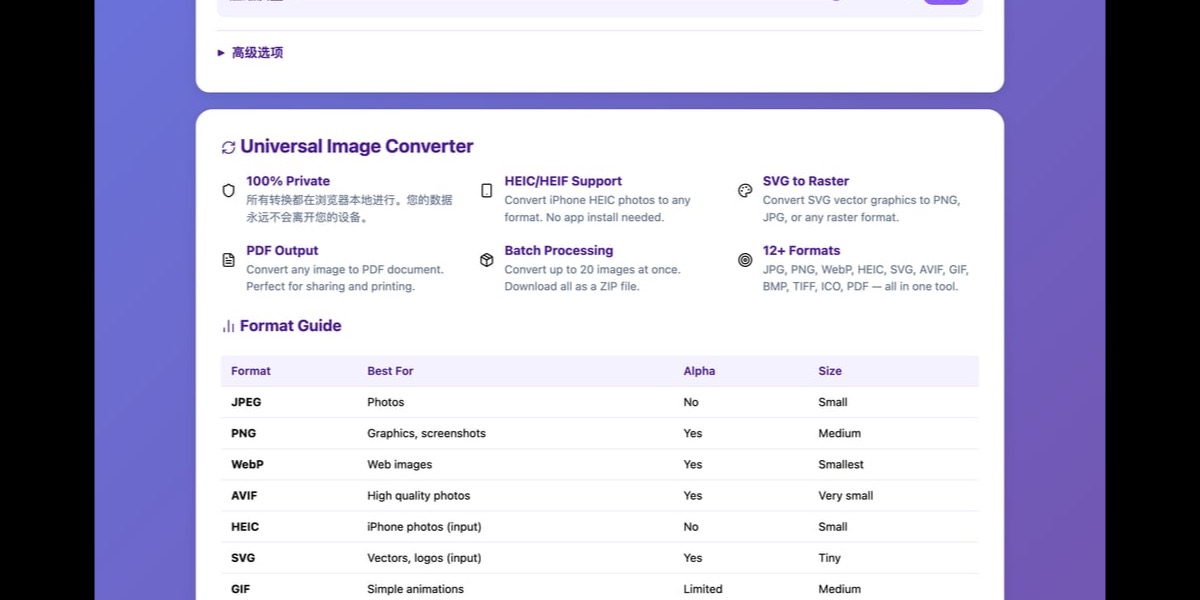
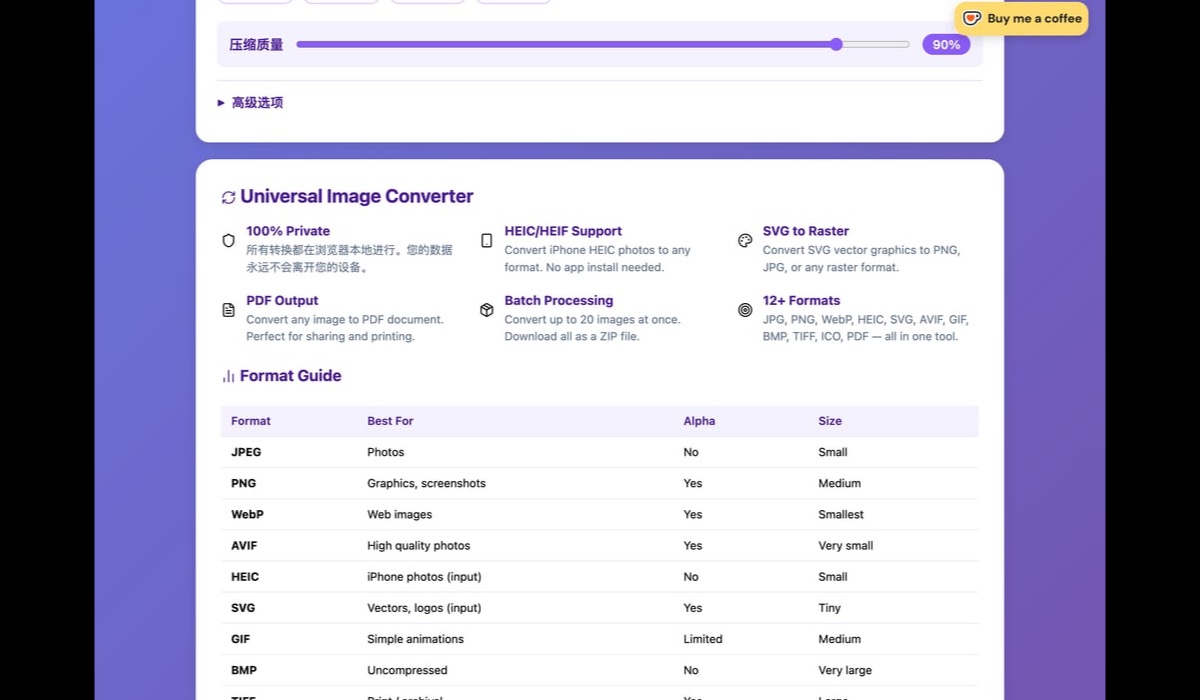
Our free online image converter supports 11+ image formats. Understanding each format's strengths helps you choose the right output for your needs:
JPG / JPEG
The universal photo format. JPEG uses lossy compression to achieve small file sizes while maintaining good visual quality. It's supported by virtually every device, browser, and application. Best for: photographs, real-world images, email attachments, and social media uploads.
PNG
PNG uses lossless compression, meaning no quality is lost. Its killer feature is transparency support — you can have images with transparent backgrounds. Best for: screenshots, logos, graphics with text, images that need transparency, and anything where sharp edges matter.
WebP
Developed by Google, WebP offers 25-35% smaller files than JPEG at equivalent quality, and it supports both lossy and lossless compression plus transparency. Best for: web images, modern websites, anywhere you need the best balance of quality and file size.
AVIF
The newest format on the block, based on the AV1 video codec. AVIF achieves even better compression than WebP — up to 50% smaller than JPEG — with excellent quality. Browser support is growing rapidly. Best for: cutting-edge web performance, next-generation websites.
HEIC / HEIF
Apple's preferred photo format since iOS 11. HEIC stores photos at roughly half the file size of JPEG with the same quality. The catch? Limited compatibility outside the Apple ecosystem. Best for: iPhone storage efficiency (input format for conversion to JPG/PNG).
SVG
Scalable Vector Graphics are resolution-independent — they look crisp at any size. SVG files are actually XML code that describes shapes and paths. Our tool supports SVG as an input format for conversion to raster formats like PNG or JPG.
GIF
Famous for animations, GIF is limited to 256 colors but supports simple transparency and frame-based animation. Best for: simple animations, reaction images, small graphics with limited colors.
BMP
An uncompressed format that stores every pixel's data. BMP files are large but lossless. Best for: when you need zero compression artifacts, legacy Windows applications.
TIFF
The professional's choice for print and archival work. TIFF supports multiple compression methods, layers, and high bit depths. Best for: professional photography, print production, archival storage.
ICO
The favicon format used by websites. ICO files can contain multiple sizes of the same icon. Best for: website favicons, Windows application icons.
Not technically an image format, but incredibly useful for sharing images as documents. PDF preserves layout and is universally viewable. Best for: sharing image collections, creating printable documents, professional presentations.
How to Use the Image Format Converter
Converting images is straightforward with our free online image converter. Here's a step-by-step walkthrough:
Upload Your Images
Open the Image Converter and drag & drop your files onto the upload area, or click to browse. You can upload multiple images at once for batch conversion — JPG, PNG, WebP, HEIC, SVG, GIF, BMP, TIFF, and AVIF are all accepted.
Choose Your Output Format
Select the target format from the dropdown menu. Options include JPG, PNG, WebP, AVIF, GIF, BMP, TIFF, ICO, and PDF. The tool remembers your last selection for convenience.
Adjust Quality Settings
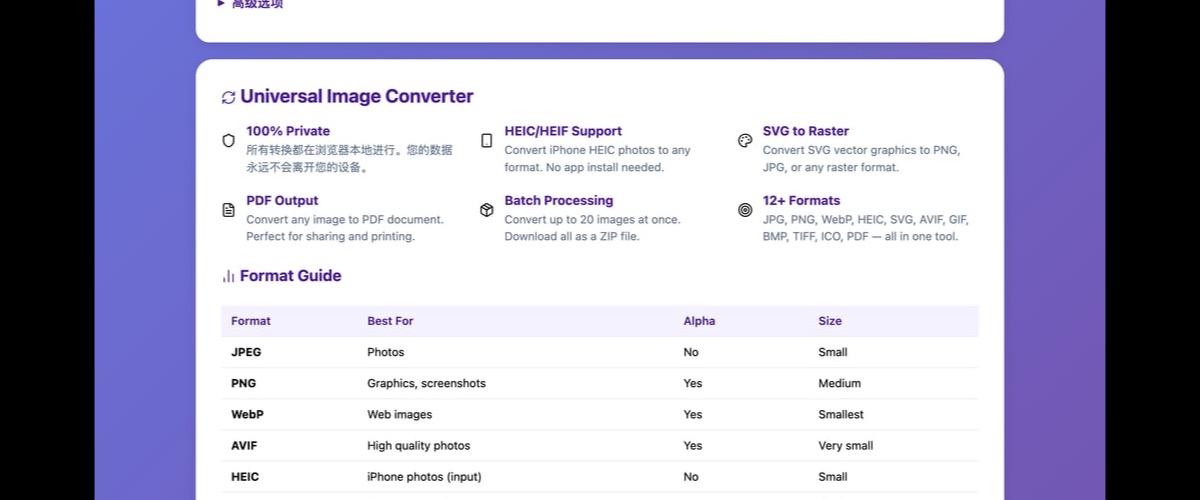
For lossy formats (JPG, WebP, AVIF), use the quality slider to balance file size and visual quality. Higher values mean better quality but larger files. For lossless formats (PNG, BMP, TIFF), quality settings don't apply.
Click Convert
Hit the Convert button and watch as your images are processed instantly. Everything happens in your browser — no files are uploaded to any server.
Download Your Results
Download converted images individually, or use the "Download All as ZIP" button if you processed multiple files. The ZIP option is especially useful for batch conversions.
Try the Image Converter Now
Convert between 11+ image formats instantly. Free, private, no registration required.
Convert Images Free →Common Use Cases
📱 Converting iPhone HEIC Photos for Sharing
This is the #1 reason people search for an image format converter. If you've transferred photos from your iPhone to a Windows PC, you likely have hundreds of .heic files that won't open in most applications. Simply upload them to our converter, select JPG as the output, and download universally compatible photos. You can convert HEIC to JPG online in seconds — no software installation needed.
🌐 Optimizing Images for Web (JPG/PNG → WebP)
Website speed is critical for user experience and SEO. Converting your site's images from JPG or PNG to WebP can reduce page weight by 25-35% with no visible quality loss. If you're running a blog, e-commerce store, or portfolio site, converting PNG to WebP is one of the easiest performance wins you can make.
📄 Creating PDFs from Images
Need to send scanned documents, receipts, or a photo collection as a single PDF? Our image to PDF converter combines multiple images into one clean PDF document. It's perfect for creating portfolios, reports, or archiving documents.
🔖 Making Favicons (ICO)
Every website needs a favicon — that tiny icon in the browser tab. Our converter can transform any image (PNG works best for clean results) into an ICO file ready for your website. Just upload your logo, select ICO format, and you'll have a professional favicon in seconds.
🎨 Converting SVG Logos to PNG
Designers often work with SVG vector files, but clients frequently request "regular image files." Converting SVG to PNG preserves the crisp quality of your vector artwork while creating a universally compatible raster image with transparency support.
Format Comparison Guide
Choosing the right output format can be confusing. This comparison table helps you make the best decision:
| Format | Compression | Transparency | Animation | Best For |
|---|---|---|---|---|
| JPG | Lossy | ❌ No | ❌ No | Photos, email |
| PNG | Lossless | ✅ Yes | ❌ No | Graphics, logos |
| WebP | Both | ✅ Yes | ✅ Yes | Web images |
| AVIF | Both | ✅ Yes | ✅ Yes | Next-gen web |
| GIF | Lossless (256c) | ✅ 1-bit | ✅ Yes | Animations |
| BMP | None | ❌ No | ❌ No | Legacy, raw data |
| TIFF | Both | ✅ Yes | ❌ No | Print, archival |
| ICO | Lossless | ✅ Yes | ❌ No | Favicons |
| Various | N/A | ❌ No | Documents |
Lossy vs. Lossless: What's the Difference?
Lossy compression permanently removes some image data to achieve dramatically smaller file sizes. Formats like JPG and WebP (lossy mode) discard details that are least noticeable to the human eye. At moderate quality settings (75-90%), the difference is virtually invisible — but the file might be 5-10× smaller.
Lossless compression reduces file size without discarding any data. The original image can be perfectly reconstructed. PNG, BMP, and TIFF use lossless compression. Files are larger, but every pixel is preserved exactly as-is. Choose lossless when precision matters — logos, screenshots, medical imaging, or any image you'll edit further.
Tips for Best Results
Quality Settings Recommendations
- JPG quality 90-95%: Archival quality, nearly indistinguishable from original. Use for important photos you want to preserve.
- JPG quality 80-85%: Great all-around setting. Excellent visual quality with significant size reduction. Recommended for most uses.
- JPG quality 60-75%: Noticeable compression but acceptable for web thumbnails, previews, and non-critical images.
- WebP quality 80%: Roughly equivalent to JPG at 90% — WebP is more efficient, so you can use lower numbers.
- AVIF quality 70%: Even more efficient than WebP. Quality 70 in AVIF often looks better than quality 85 in JPG.
When to Use Lossless vs. Lossy
- Choose lossy (JPG, WebP, AVIF): For photos, real-world images, social media, web pages, email attachments
- Choose lossless (PNG, TIFF, BMP): For logos, screenshots, graphics with text, images you'll edit later, professional print
Batch Processing Tips
Our batch image converter lets you process multiple files simultaneously. For the most efficient workflow:
- Upload all files at once by selecting multiple files or dragging a group
- Set your desired output format and quality before uploading
- Use "Download All as ZIP" for quick retrieval of all converted files
- For mixed needs, process in batches by format — all JPGs first, then PNGs
Privacy & Security
Unlike most online image converters that upload your files to remote servers, our tool processes everything 100% locally in your browser. Here's what that means for your privacy:
- No server upload: Your images never leave your device. There's nothing to intercept, leak, or hack.
- No account required: No registration, no login, no personal data collected.
- Works offline: Once the page loads, you can disconnect from the internet and the tool still works perfectly.
- No file size limits: Since processing is local, you're only limited by your device's memory — not server restrictions.
How It Works Under the Hood
The converter uses the browser's built-in Canvas API and modern Web APIs to read, process, and re-encode images. When you upload a file, JavaScript reads it into memory, draws it onto an invisible HTML5 canvas, and then exports it in your chosen format. The entire pipeline runs in your browser's sandbox — no external servers involved.
Frequently Asked Questions
How do I convert HEIC to JPG?
Open our Image Converter, upload your HEIC files (drag & drop or click to browse), select "JPG" as the output format, adjust quality if needed (80-90% is recommended), and click Convert. Your HEIC photos will be converted to universally compatible JPG files instantly. You can download them individually or as a ZIP.
What's the best format for web images?
WebP is currently the best all-around format for web images. It offers 25-35% smaller files than JPEG with equivalent quality and supports transparency. AVIF is even more efficient but has slightly less browser support. For maximum compatibility, use WebP with a JPEG fallback. Use PNG only when you need lossless quality or transparency with older browsers.
Can I convert multiple images at once?
Yes! Our batch image converter supports multiple files. Simply select all your images at once or drag a group of files onto the upload area. All files will be converted to your chosen format simultaneously. Use the "Download All as ZIP" button to get everything in one click.
Is it safe to use this converter?
Absolutely. Our image converter processes everything locally in your browser using JavaScript. Your images are never uploaded to any server. No data leaves your device, making it the safest option for converting sensitive or private images. You can even use it offline after the page loads.
What's the maximum file size I can convert?
Since the conversion happens in your browser, there's no server-imposed file size limit. The practical limit depends on your device's available memory. Most modern computers and phones can handle images up to 50-100MB without issues. For very large files (100MB+), ensure you have enough free RAM.
Conclusion
Image format conversion doesn't have to be complicated. Whether you're converting iPhone HEIC photos to JPG, optimizing web images to WebP, creating favicons, or building PDFs from image collections, our free online image converter handles it all in one place.
Here's what makes it the best choice:
- 11+ formats supported — JPG, PNG, WebP, AVIF, HEIC, SVG, GIF, BMP, TIFF, ICO, PDF
- 100% private — all processing happens locally, no server uploads
- Batch conversion — process multiple files at once with ZIP download
- Adjustable quality — fine-tune the balance between file size and visual quality
- Completely free — no watermarks, no limits, no registration
- Use JPG for photos and universal sharing
- Use PNG for graphics, logos, and images needing transparency
- Use WebP or AVIF for the best web performance
- Convert HEIC to JPG for cross-platform compatibility
- Always keep your originals — convert copies, not source files
Ready to Convert Your Images?
Stop wrestling with incompatible formats. Convert any image to any format in seconds — free, private, and right in your browser.
Try Image Converter Now →