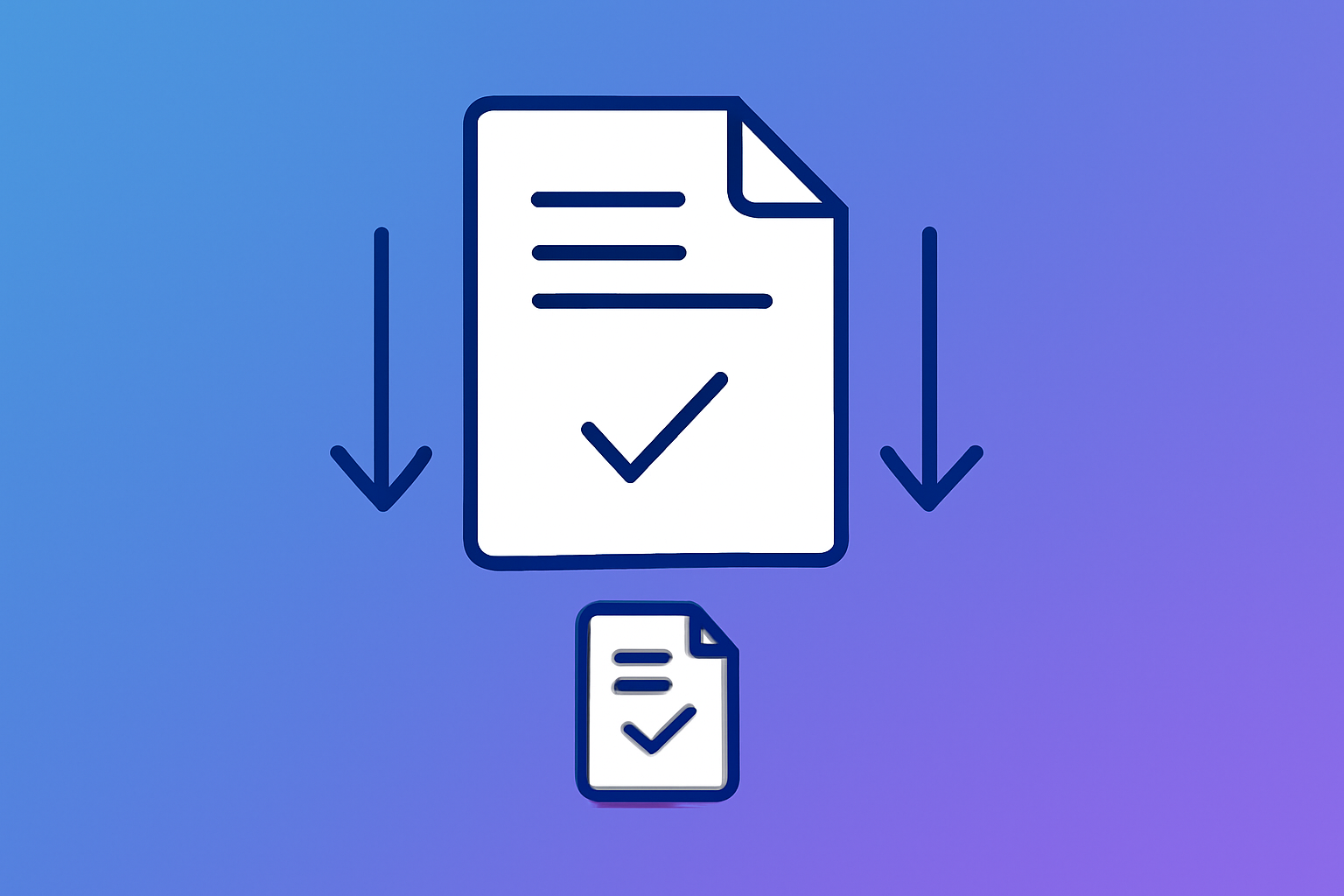
Why You Need to Compress PDF Files
PDF files are everywhere—from business reports and contracts to ebooks and resumes. However, large PDF files can be frustrating to share via email (most services limit attachments to 25MB), slow to upload, and take up valuable storage space. Learning how to compress PDF files effectively is an essential skill in today's digital world.
The good news? You can reduce PDF size by up to 90% while maintaining acceptable quality for most purposes. In this comprehensive guide, we'll explore the best methods and tools to compress your PDFs efficiently.
Understanding PDF Compression
Before diving into the how-to, it's helpful to understand what makes PDFs large in the first place:
- Embedded Images: High-resolution images are the #1 cause of large PDFs. A single uncompressed photo can add several megabytes.
- Embedded Fonts: PDFs often embed entire font families, even when only a few characters are used.
- Unnecessary Metadata: Hidden data like revision history, thumbnails, and form field data can bloat file size.
- Unoptimized Structure: Repeated elements and inefficient encoding increase file size.
Step-by-Step: How to Compress PDF Online
The easiest way to compress PDF files is using an online tool. Here's how to do it with our free PDF compressor:
Open the PDF Compressor Tool
Navigate to our free PDF compressor. No signup or installation required.
Upload Your PDF
Drag and drop your PDF file onto the upload area, or click to browse. Files up to 100MB are supported.
Choose Compression Level
Recommended: Best balance of size and quality (ideal for most documents).
Strong: Smaller file size with minor quality reduction.
Maximum: Smallest possible size, may affect image quality.
Download Your Compressed PDF
Click "Compress PDF" and wait a few seconds. Download your optimized file—typically 40-90% smaller!
Try It Now - Free PDF Compressor
Compress your PDF files instantly. 100% free, no signup, files never leave your device.
Compress PDF NowBest Practices for PDF Compression
To get the best results when you reduce PDF size, follow these expert tips:
1. Optimize Images Before Creating the PDF
If you're creating a PDF from scratch, resize and compress images first. A 4000x3000 pixel image rarely needs to be that large in a document. Consider:
- Resizing images to the actual display size needed
- Using JPEG format for photos (lossy but smaller)
- Using PNG only when transparency is required
- Compressing images with tools like our Image Compressor
2. Choose the Right Compression Level
Different documents require different approaches:
- Text-heavy documents: Maximum compression is usually fine
- Documents with charts/graphs: Recommended compression preserves clarity
- Photo portfolios: Use lighter compression to maintain image quality
- Print-ready files: Avoid heavy compression to preserve print quality
3. Consider Your Use Case
Think about how the PDF will be used:
- Email attachments: Aim for under 10MB (smaller is better)
- Website downloads: Optimize for fast loading
- Archiving: Balance size and quality for long-term storage
- Printing: Higher quality may be necessary
Online vs Desktop PDF Compressors
There are two main approaches to PDF compression. Here's how they compare:
Online PDF Compressors (Recommended)
- No software installation required
- Works on any device (Windows, Mac, Linux, mobile)
- Always up-to-date
- Often free to use
- Some services upload your files to their servers
Our PDF compressor processes files entirely in your browser—your PDFs never leave your device, ensuring complete privacy.
Desktop Software
- No internet required after installation
- May offer advanced features
- Requires installation and updates
- Often expensive (Adobe Acrobat Pro costs ~$20/month)
Advanced Tips for Maximum Compression
Remove Unnecessary Elements
Before compressing, consider removing:
- Embedded thumbnails
- JavaScript and form fields (if not needed)
- Bookmarks and annotations
- Hidden layers
Split Large Documents
For very large PDFs, consider splitting them into smaller files. This makes sharing easier and allows you to compress each section appropriately.
Combine Multiple PDFs Efficiently
If you're merging multiple PDFs, compress each file first, then merge. This often produces smaller results than merging first and then compressing.
Conclusion
Learning to compress PDF files effectively saves time, storage space, and frustration. With modern browser-based tools, you can reduce PDF size significantly in seconds—no software installation required, and your files remain completely private.
For most users, our free online PDF compressor provides the perfect balance of convenience, quality, and security. Try it now and see how much space you can save!
- Large images are the main cause of bloated PDFs
- Most PDFs can be compressed by 40-90% without noticeable quality loss
- Choose compression level based on your use case
- Browser-based tools offer privacy and convenience
- Always keep original files when quality matters
