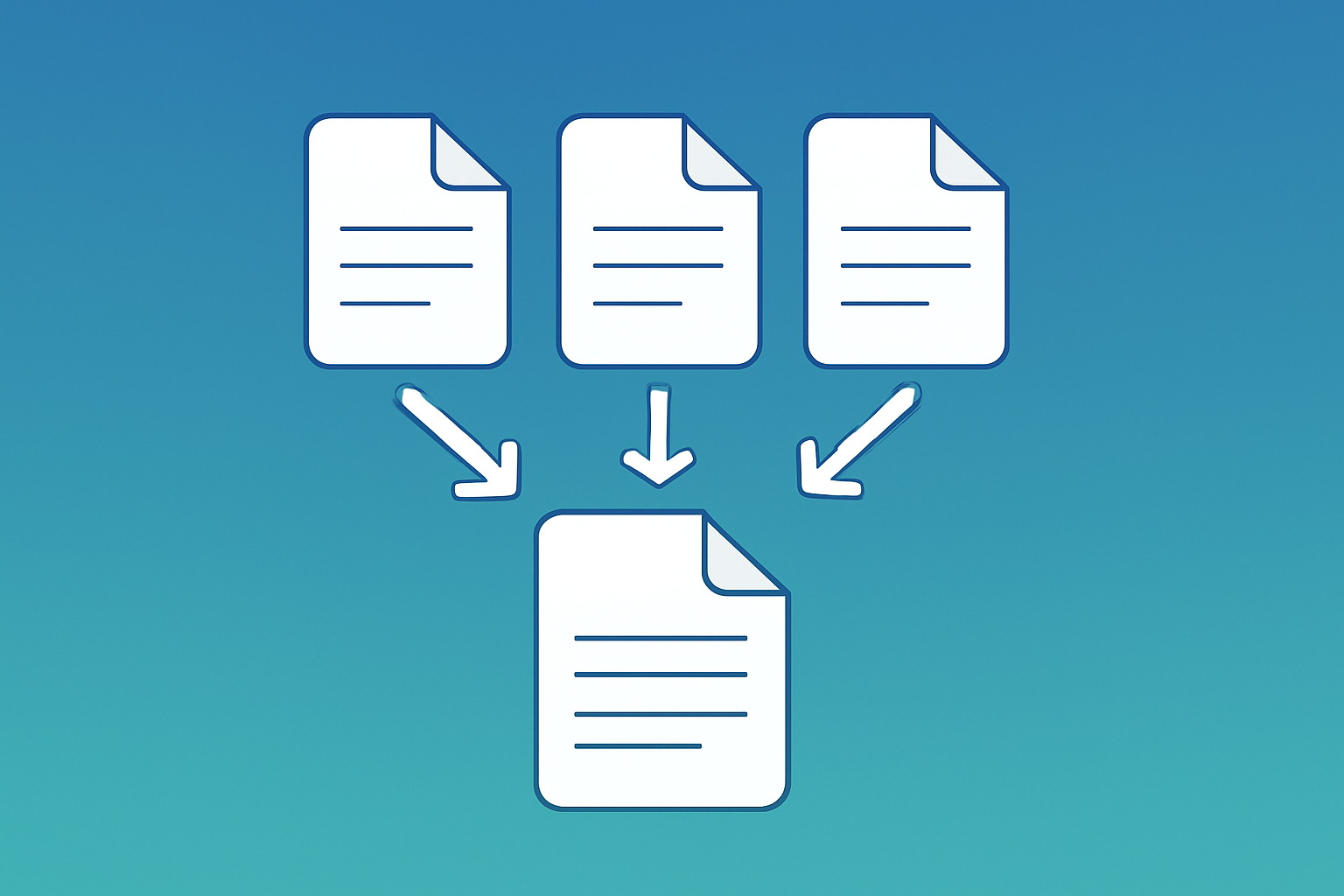
Why Merge PDF Files?
In today's digital workplace, managing multiple PDF documents is a daily challenge. Whether you're combining report sections, assembling client proposals, or organizing scanned documents, knowing how to merge PDF files efficiently can save hours of work and frustration.
Combining PDFs isn't just about convenience—it's about creating professional, organized documents that are easier to share, archive, and navigate. Instead of sending five separate attachments, you can combine PDF files into one cohesive document that tells a complete story.
- Combining multiple invoices into a single billing document
- Merging presentation slides with appendix materials
- Assembling legal documents and contracts
- Creating comprehensive reports from multiple sources
- Organizing scanned documents into logical collections
Different Methods to Combine PDFs
There are several ways to join PDF files, each with its own advantages. Let's explore the most popular methods:
1. Online PDF Merger Tools (Recommended)
Browser-based tools offer the most convenient way to merge PDFs. They require no software installation and work on any device—Windows, Mac, Linux, or mobile.
- Pros: Free, instant access, works anywhere, always up-to-date
- Cons: Some services upload files to servers (privacy concern)
- Best for: Quick merges, occasional users, mobile users
2. Desktop Software
Programs like Adobe Acrobat Pro, PDF-XChange Editor, or free alternatives like PDFsam offer powerful merging capabilities.
- Pros: Works offline, advanced features, batch processing
- Cons: Requires installation, often expensive, platform-specific
- Best for: Heavy users, enterprise environments, offline work
3. Built-in OS Features
Mac users can merge PDFs using Preview, while Windows users can use Microsoft Print to PDF in combination with other tools.
- Pros: Free, already installed, no additional software
- Cons: Limited features, less intuitive, varies by platform
- Best for: Simple merges, tech-savvy users
Step-by-Step: How to Merge PDF Online
Follow these simple steps to combine PDF files using our free online tool:
Open the PDF Merger Tool
Navigate to our free PDF merger. No account or installation required—it works directly in your browser.
Upload Your PDF Files
Drag and drop multiple PDF files onto the upload area, or click to browse. You can add as many files as needed—there's no limit on the number of documents.
Arrange the Order
Drag files to reorder them. The final merged PDF will follow this sequence. Take time to ensure the order is correct before proceeding.
Merge and Download
Click "Merge PDF" and wait a few seconds. Your combined document will be ready to download—all pages from all files in one PDF!
Try It Now - Free PDF Merger
Combine multiple PDFs into one document instantly. 100% free, unlimited files, complete privacy.
Merge PDF NowBest Practices for Merging PDFs
1. Organize Files Before Merging
Rename your files with numbers or dates (e.g., "01_Introduction.pdf", "02_Chapter1.pdf") to make ordering easier. A well-organized source folder saves time and prevents mistakes.
2. Check Page Orientation
Before merging, ensure all documents have consistent page orientation. Mixed portrait and landscape pages can create awkward reading experiences. Use a PDF rotation tool to fix orientation issues first.
3. Consider File Size
Merging many large PDFs creates even larger files. If the final document will be shared via email:
- Compress individual PDFs before merging
- Or compress the merged result afterward
- Aim for under 10MB for email attachments
4. Verify the Result
Always open and review your merged PDF before sharing:
- Check that all pages are present
- Verify the page order is correct
- Ensure no pages are cut off or distorted
- Test that links and bookmarks work (if applicable)
5. Keep Original Files
Don't delete your source files immediately after merging. Keep them until you've verified the merged document is perfect. You may need to re-merge with corrections.
Tool Comparison: Online vs Desktop
| Feature | Online Tools | Desktop Software |
|---|---|---|
| Price | Usually free | $0-$300/year |
| Installation | None required | Required |
| Offline Use | No | Yes |
| File Size Limit | Varies (50-500MB) | Usually unlimited |
| Batch Processing | Basic | Advanced |
| Privacy | Depends on tool* | Full control |
*Our tool processes files locally in your browser—files never leave your device.
Advanced Merging Techniques
Merging Specific Pages Only
Sometimes you don't need entire documents—just specific pages. Here's a two-step approach:
- Use a PDF splitter to extract only the pages you need
- Merge the extracted pages into your final document
Adding Bookmarks and Navigation
For long merged documents, consider adding bookmarks for easy navigation. While most online tools don't support this, desktop software like Adobe Acrobat can add bookmarks to merged PDFs.
Merging Password-Protected PDFs
Most tools require you to enter the password before merging protected PDFs. If you have permission to access the content, you'll need to unlock each file first or enter passwords during the merge process.
Troubleshooting Common Issues
Merged PDF is Too Large
If your merged file is unexpectedly large:
- Compress the merged PDF using our compression tool
- Check if source files contain high-resolution images
- Remove unnecessary embedded fonts or metadata
Pages Appear Blank or Corrupted
This usually indicates a problem with the source file:
- Try opening the source file separately to verify it works
- Re-download or re-create the problematic PDF
- Some PDFs with complex security may not merge correctly
Wrong Page Order
Simply re-merge with the correct order. Most tools allow drag-and-drop reordering before merging. Double-check the preview before downloading.
Frequently Asked Questions
Can I merge PDFs for free?
Yes! Many online tools, including our PDF Merger, are completely free to use. There's no limit on the number of merges or files, and no account is required.
Is it safe to merge PDFs online?
It depends on the tool. Some services upload your files to their servers, which could pose privacy risks. Our tool processes everything in your browser—your files never leave your device, making it completely safe for sensitive documents.
How many PDFs can I merge at once?
With our tool, there's no practical limit on the number of files. You can merge dozens of PDFs in a single operation. The only limitation is your device's available memory for very large operations.
Will merging affect PDF quality?
No. Merging PDFs is a lossless operation—it simply combines the files without re-encoding content. Your text, images, and formatting remain exactly as they were in the original files.
Can I merge PDFs on my phone?
Yes! Online tools like ours work on any device with a web browser, including iPhones, Android phones, and tablets. No app installation needed.
Conclusion
Learning to merge PDF files efficiently is an essential skill in today's document-heavy world. Whether you're preparing business proposals, organizing personal records, or assembling academic materials, the ability to combine PDF documents quickly saves time and creates more professional results.
For most users, browser-based tools offer the perfect combination of convenience, speed, and privacy. Our free PDF Merger handles unlimited files, works on any device, and keeps your documents completely private.
- Online tools offer the fastest, most convenient way to merge PDFs
- Always organize and rename files before merging for best results
- Check page orientation and compress large files when needed
- Verify your merged document before sharing or deleting originals
- Choose tools that process files locally for maximum privacy
